 3kode e-commerce
How to Set up the Homepage for Classic layout?
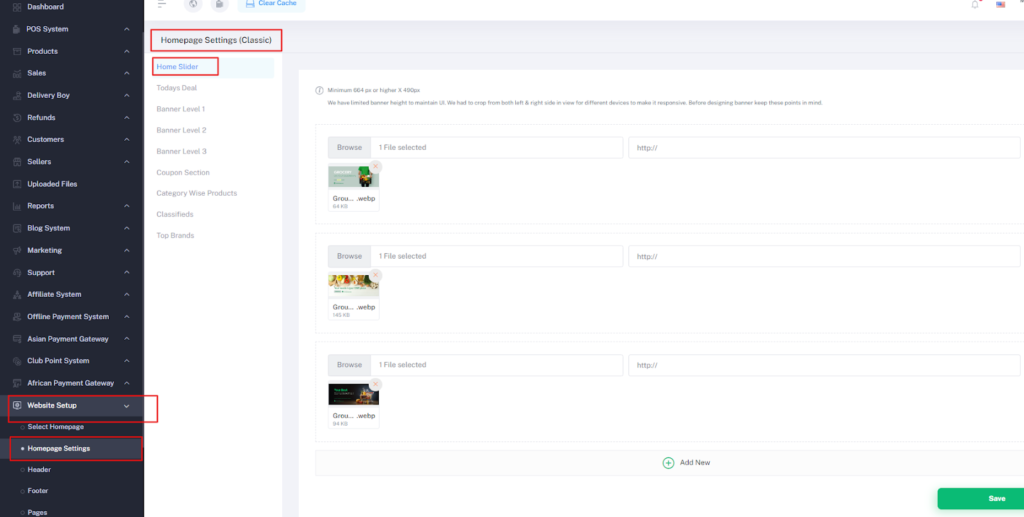
From the admin panel, go to Website Setup > Homepage Settings.
Home slider
Select multiple images for the top slider section. Also, add, edit, and delete options are available there. Admin can add links here besides the banners. By clicking on that banners customers can go to those links. After adding banners and links Click on Save.
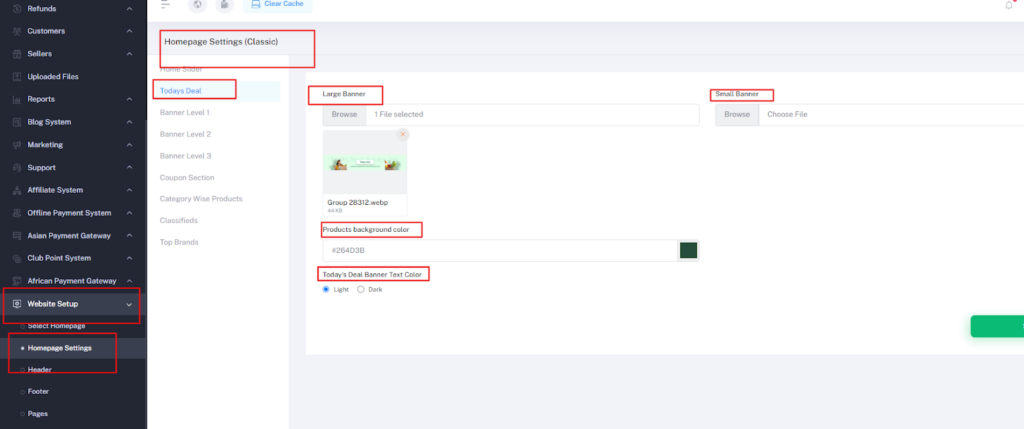
Today’s Deal
Admin can add “Today’s deal” banners. There are two banners options for devices. Large banner for Large devices and Small banner for Small devices. If admin don’t upload the small banner then the large banner will show in small device by adjucting the size. You can input products background color And also can select Banner Text color from Dark or light options. Then click on save.
Home Banner level 1
Add Home banner level-1 & the maximum number is 3. And click on update.
Home Banner level 2
Select Home banner level-2 & the maximum number is 3. And click on update.
Home Banner level 3
Select Home banner level-3 & the maximum number is 3. And click on update.
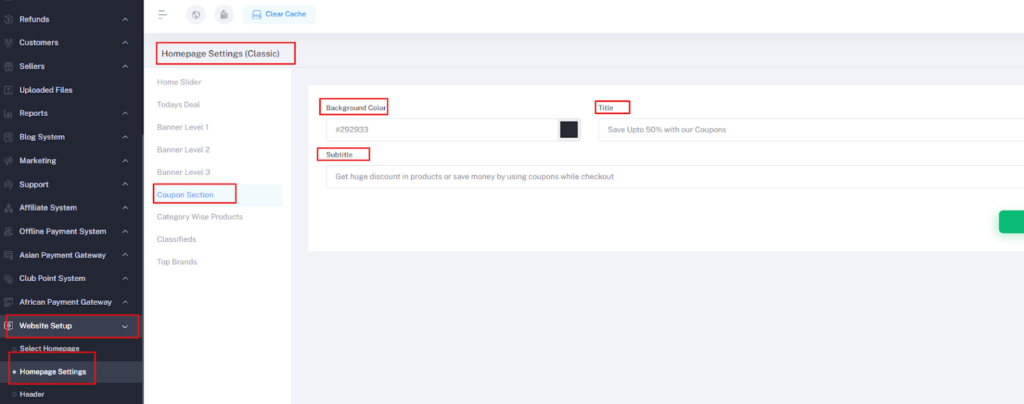
Coupon Section
From this part you can add/edit background color, title and subtitle. Click on Save.
Category wise product
By clicking on the “add new” button admin can create this section category-wise products. And click on update.
Classified Banner
Admin can upload classified banners from here. There are two banners options for devices. Large banner for Large devices and Small banner for Small devices. If admin don’t upload the small banner then the large banner will show in small device by adjucting the size. Upload banners and update.
Top-Brand
Top Brands (Max 12): Select Maximum of 12 Brands for the sections. And click on update.